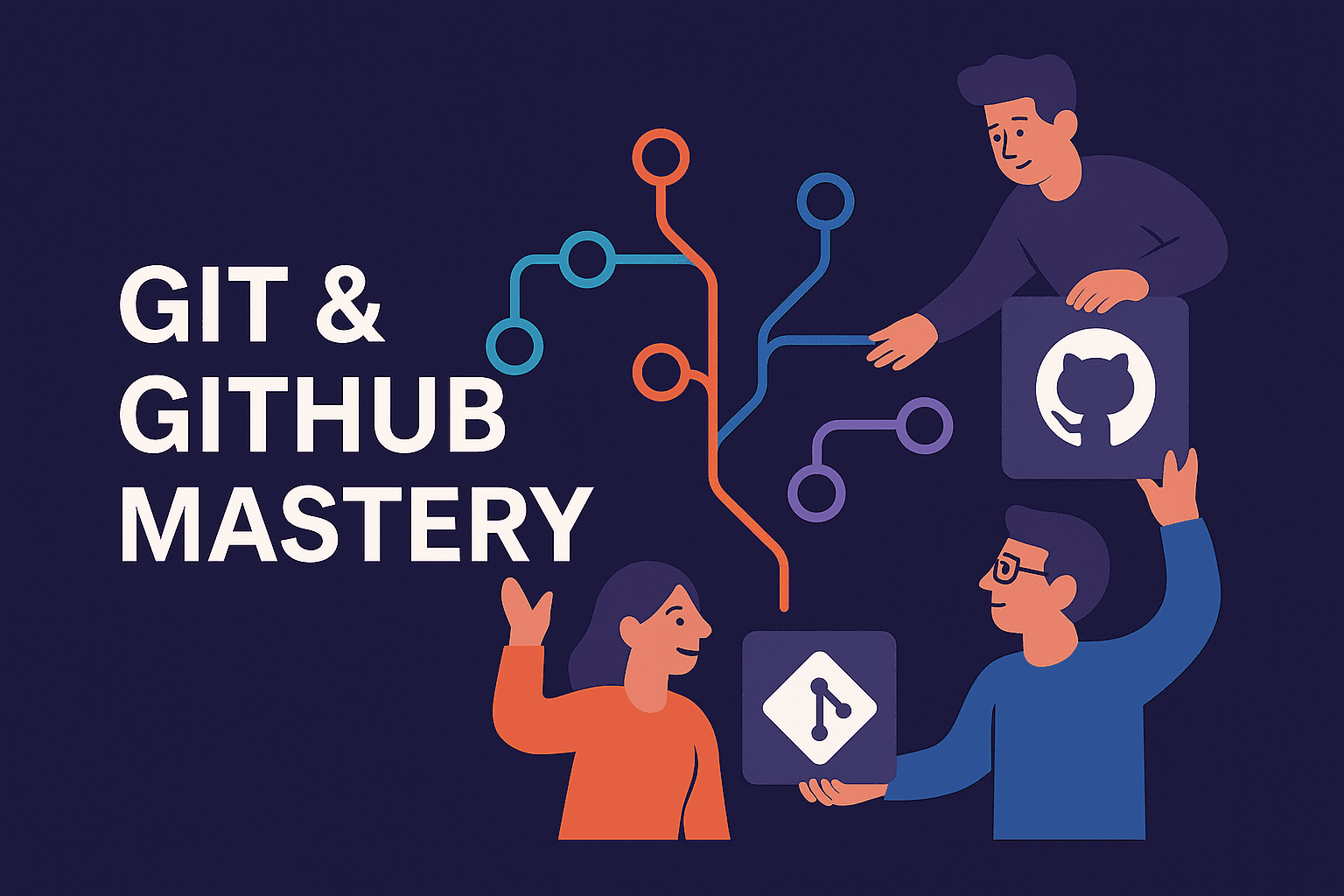
Git & GitHub Mastery: From Solo Commits to Seamless Team Collaboration
Tired of merge conflicts ruining your day? Confused about when to branch, merge, or rebase? Ready to collaborate like a pro instead of stepping on your teammates' toes? Git and GitHub are the backbone of modern software development, but most developers learn them haphazardly. This comprehensive guide will transform you from a Git-anxious developer to a collaboration confident team player.
🎯 What You'll Learn
By the end of this guide, you'll master:
- Git fundamentals that actually make sense
- Professional branching strategies for small teams
- Conflict resolution without the panic
- Code review workflows that improve your team
- GitHub features that supercharge collaboration
- Recovery techniques for when things go wrong
- Team communication patterns through Git
🚀 The Lightning-Fast Overview
Git collaboration follows a simple pattern:
# Individual Work          Team Work
git add .              →   git pull origin main
git commit -m "fix"    →   git push origin feature-branch
git push               →   Create Pull Request → Review → Merge
Everything else is just variations on this theme.
📚 Prerequisites
Before diving in, make sure you have:
✅ Git installed locally (git-scm.com) ✅ A GitHub account (github.com) ✅ Basic command line comfort ✅ A code editor (VS Code recommended)
Never used Git? Complete GitHub's Git Handbook first for the absolute basics.
📋 Table of Contents
- Why Git Mastery Matters for Teams
- Git Fundamentals That Actually Stick
- Setting Up for Team Success
- Branching Strategies for Small Teams
- The Professional Commit Workflow
- Mastering Pull Requests and Code Reviews
- Handling Merge Conflicts Like a Pro
- Advanced Team Workflows
- Recovery and Troubleshooting
- GitHub Features for Team Productivity
Why Git Mastery Matters for Teams
The Cost of Poor Git Practices
I've seen small teams waste hours every week because of Git confusion:
# ❌ The nightmare scenario every team faces
Developer A: "I can't push, it says non-fast-forward"
Developer B: "Just force push, it'll be fine"
Developer C: "Wait, where did my changes go?"
*Team spends 2 hours reconstructing lost work*
Real costs of poor Git practices:
🕐 Time waste: 2-5 hours per week on Git issues 😰 Stress: Fear of breaking things for teammates 🐛 Bugs: Lost changes and inconsistent code 📉 Productivity: Avoiding features due to merge anxiety 👥 Team friction: Blame when things go wrong
The Team Transformation
With proper Git workflows:
# ✅ The smooth team experience
Developer A: git checkout -b feature/user-auth
Developer B: git checkout -b feature/dashboard
Developer C: git checkout -b fix/login-bug

# Everyone works independently, merges cleanly
# Code reviews catch issues before they hit main
# Team ships features faster and with confidence
Benefits of Git mastery:
⚡ Faster development: Parallel work without conflicts 🛡️ Code safety: Never lose work again 🤝 Better collaboration: Clear process everyone follows 📈 Higher quality: Built-in code review process 😌 Reduced stress: Confidence in your workflow
Git Fundamentals That Actually Stick
Why Git Is Different From Other Version Control Systems
Before diving into Git commands, it's crucial to understand why Git was designed the way it was and how it fundamentally differs from older version control systems like SVN or CVS:
# Traditional VCS (SVN, CVS)           # Git (Distributed VCS)
┌─────────────────┐                    ┌─────────────┐  ┌─────────────┐
│  Central Server │                    │ Your Copy   │  │ Their Copy  │
│  with History   │                    │ Full History│  │ Full History│
└────────┬────────┘                    └──────┬──────┘  └──────┬──────┘
         │                                    │                │
┌────────┴────────┐                    ┌──────┴──────┐  ┌──────┴──────┐
│ Your Checkout   │                    │   GitHub    │  │   GitHub    │
│ (Just a copy)   │                    │ (Just sync) │  │ (Just sync) │
└─────────────────┘                    └─────────────┘  └─────────────┘
Why this matters:
-
Offline Work: You have the full project history locally, so you can commit, branch, and view history without internet access.
-
Speed: Operations are fast because they happen locally, not over the network.
-
Backup by Design: Every developer's computer has a complete backup of the repository.
-
Flexible Workflows: Enables workflows like feature branches and pull requests that weren't practical with centralized systems.
The Mental Model That Changes Everything
Think of Git as a photo album of your project, but with a crucial twist - Git doesn't store changes or diffs between versions; it stores complete snapshots:
# Each commit = a complete snapshot of your entire project at that moment
📸 Initial commit    (Snapshot 1: Empty project)
📸 Add homepage      (Snapshot 2: Project with homepage)
📸 Add user auth     (Snapshot 3: Project with auth)
📸 Fix login bug     (Snapshot 4: Project with auth fixed)
Why snapshots instead of diffs?
- Performance: Retrieving any version is immediate (no need to apply multiple diffs)
- Integrity: Each snapshot is checksummed, so corruption is immediately detectable
- Reliability: No risk of partial or corrupted changes
Branches = different timelines of snapshots for different features Merging = combining snapshots from different timelines Remote = shared collection of snapshots in the cloud (GitHub)
Git's Internal Data Model
Understanding Git's data model helps explain why certain operations work the way they do:
# Git stores a directed acyclic graph (DAG) of commits

o---o---o---o---o  main
     \
      o---o---o    feature-branch
           \
            o---o  another-branch
Key concepts:
- Commit: A snapshot with metadata (author, date, message) and a pointer to its parent commit(s)
- Branch: Just a movable pointer to a specific commit
- HEAD: A special pointer that points to your current location in history
- Remote: A named reference to another copy of the repository
Essential Commands with Context
Instead of memorizing commands, understand the why behind each and how they relate to Git's data model:
# CHECKING STATUS (Where am I? What's changed?)
git status                    # "What files have changed since my last commit?"
                             # WHY: Shows working directory and staging area differences

git log --oneline            # "Show me the commit history in this branch"
                             # WHY: Each commit has a unique hash ID and message

git log --oneline --graph    # "Show me how branches and merges connect"
                             # WHY: Visualizes the commit graph structure

# MAKING CHANGES (Creating new snapshots)
git add filename.js          # "Stage this specific file for the next commit"
                             # WHY: Lets you build your commit in pieces

git add .                    # "Stage all modified files for the next commit"
                             # WHY: Convenient for related changes across files

git commit -m "Add login"    # "Create a new snapshot with these staged changes"
                             # WHY: Creates a permanent point in history you can return to

# WORKING WITH BRANCHES (Different development timelines)
git branch                   # "Show me all the branches in this repository"
                             # WHY: Branches are just pointers to specific commits

git checkout feature-auth    # "Move my HEAD pointer to the feature-auth branch"
                             # WHY: Updates your working directory to that snapshot

git checkout -b new-feature  # "Create a new pointer at current commit and switch to it"
                             # WHY: Branches are lightweight (just a 41-byte file)

# SYNCING WITH TEAM (Sharing commit history)
git fetch origin             # "Download objects and refs from another repository"
                             # WHY: Gets remote data without changing your working copy

git pull origin main         # "Fetch from and integrate with another repository"
                             # WHY: Combines fetch + merge in one command

git push origin feature-auth # "Update remote refs along with associated objects"
                             # WHY: Uploads your commits to the shared repository
Why these commands work this way:
- Staging area exists because Git wants to let you craft meaningful, atomic commits rather than committing everything at once
- Branches are lightweight because they're just pointers, not copies of files
- Checkout changes your working directory because Git needs to make the files match the snapshot you're switching to
- Fetch vs. Pull separation exists to give you control over when network changes affect your working copy
The Git Areas Explained Simply
Working Directory  →  Staging Area  →  Local Repository  →  Remote Repository
    (Your desk)       (Photo prep)     (Your albums)       (Team's albums)
       ↓                   ↓                ↓                    ↓
   Edit files          git add         git commit           git push
Why Git has these distinct areas:
-
Working Directory: Your actual files on disk that you edit directly
- Why it exists: So you can see and modify your code with normal tools
- What happens here: File creation, editing, deletion with any tool
-
Staging Area: (Also called the "index") A preview of your next commit
- Why it exists: To let you build commits with precision, including only related changes
- What happens here: Files are prepared in exactly the state you want to commit
- Key benefit: You can stage only parts of modified files (with
git add -p)
-
Local Repository: Your commit history and all project versions
- Why it exists: To store the complete history locally for speed and offline work
- What happens here: Commits are permanently recorded with unique IDs
- Key benefit: You can browse history, create branches, and work offline
-
Remote Repository: The shared team copy (like GitHub)
- Why it exists: To synchronize work between team members
- What happens here: Commits are exchanged between team members
- Key benefit: Provides backup and enables collaboration
Real example with explanation of what's happening under the hood:
# 1. Working Directory: You edit login.js
echo "function login() {}" >> login.js
# (File exists only in your working directory now)

# 2. Staging: Prepare the file for commit
git add login.js
# (Git creates a blob object with the file content and updates the index)

# 3. Repository: Take the snapshot
git commit -m "Add login function"
# (Git creates a tree object representing the project structure and a commit object pointing to that tree)

# 4. Remote: Share with team
git push origin feature-login
# (Git sends your new objects to the remote repository and updates the remote branch pointer)
Why understanding these areas matters:
- Helps you recover from mistakes (each area has different recovery methods)
- Enables precise control over what gets committed
- Explains why some Git errors occur and how to fix them
Setting Up for Team Success
Team Repository Setup
Repository Owner (Team Lead) Setup:
# 1. Create the main repository
# (Do this on GitHub.com, then clone)
git clone https://github.com/team/project-name.git
cd project-name

# 2. Set up initial structure
mkdir src tests docs
echo "# Project Name" > README.md
echo "node_modules/" > .gitignore

# 3. Create initial commit
git add .
git commit -m "Initial project structure"
git push origin main

# 4. Set up branch protection (on GitHub)
# Settings → Branches → Add rule for 'main':
# ✅ Require pull request reviews
# ✅ Require status checks to pass
# ✅ Include administrators
Team Member Setup:
# 1. Clone the repository
git clone https://github.com/team/project-name.git
cd project-name

# 2. Configure your Git identity
git config user.name "Your Name"
git config user.email "your.email@example.com"

# 3. Set up useful aliases
git config alias.co checkout
git config alias.br branch
git config alias.st status
git config alias.unstage 'reset HEAD --'

# 4. Configure pull behavior
git config pull.rebase false  # Use merge strategy
Essential .gitignore for Teams
Create a comprehensive .gitignore to avoid committing unwanted files:
# .gitignore - Essential for team projects

# Dependencies
node_modules/
npm-debug.log*
yarn-debug.log*
yarn-error.log*

# Environment variables (NEVER commit these!)
.env
.env.local
.env.development.local
.env.test.local
.env.production.local

# IDE and Editor files
.vscode/
.idea/
*.swp
*.swo
*~

# OS generated files
.DS_Store
.DS_Store?
._*
.Spotlight-V100
.Trashes
ehthumbs.db
Thumbs.db

# Build outputs
dist/
build/
*.tgz
*.tar.gz

# Logs
logs
*.log

# Runtime data
pids
*.pid
*.seed
*.pid.lock
Team Communication Setup
Commit Message Convention (Choose one and stick to it):
# Option 1: Conventional Commits (Recommended)
feat: add user authentication
fix: resolve login redirect issue
docs: update API documentation
style: fix code formatting
refactor: simplify user validation
test: add unit tests for auth module

# Option 2: Simple Descriptive (Good for small teams)
Add user authentication feature
Fix login redirect bug
Update README with setup instructions
Refactor user validation logic
Branching Strategies for Small Teams
Why Branching Strategy Matters
Before diving into specific strategies, let's understand why having a consistent branching approach is crucial:
# Without a branching strategy          # With a clear branching strategy

     ???                                  main (production-ready)
    /|\                                    |
   / | \                                   ├── develop (integration)
  /  |  \                                  ├── feature/login
 /   |   \                                 ├── feature/dashboard
?    ?    ?                                └── hotfix/security-patch
Real-world consequences of poor branching:
- Deployment confusion: "Wait, which branch has the approved features?"
- Merge hell: "This will take hours to untangle!"
- Broken production: "Who pushed untested code to main?"
- Lost work: "Where did my changes go?"
The GitHub Flow (Perfect for 2-3 Developers)
Simple, effective, and widely adopted:
main branch (always deployable)
    ├── feature/user-profile (Developer A)
    ├── feature/payment-system (Developer B)
    └── fix/navbar-responsive (Developer C)
Why GitHub Flow works for small teams:
- Simplicity: Minimal overhead and easy to understand
- Continuous delivery: Main is always deployable
- Visibility: Pull requests make changes transparent
- Flexibility: Works well with agile development
Real-world example: A small team building a web app
Meet Team WebApp: Alex (frontend), Bailey (backend), and Casey (full-stack)
# Monday morning: Team planning
Alex: "I'll work on the user dashboard this week"
Bailey: "I need to implement the API endpoints"
Casey: "I'll fix that responsive navbar bug"

# Each creates their branch
git checkout -b feature/user-dashboard    # Alex
git checkout -b feature/api-endpoints     # Bailey
git checkout -b fix/responsive-navbar     # Casey

# Wednesday: Casey finishes first
# Creates PR, gets reviews from Alex and Bailey
# PR is approved and merged to main

# Thursday: Bailey's API is ready
# But wait! It needs to use Casey's navbar fix
git checkout feature/api-endpoints
git pull origin main                     # Get latest changes including navbar fix
# Continues work, then creates PR

# Friday: Alex finishes dashboard
# Dashboard needs to use Bailey's API
git checkout feature/user-dashboard
git pull origin main                     # Get latest including API endpoints
# Resolves minor conflicts, creates PR
The workflow:
- Create feature branch from main
- Work on feature with regular commits
- Open pull request when ready
- Code review and discussion
- Merge to main after approval
- Delete feature branch
Practical Branching Example: A Day in the Life
Let's follow Alex, a frontend developer, through a typical day using GitHub Flow:
# 8:45 AM: Starting the day right
# First, make sure you're on main and up-to-date
git checkout main
git pull origin main

# 9:00 AM: Create and switch to feature branch for today's task
git checkout -b feature/user-dashboard

# 9:15 AM - 10:30 AM: Initial implementation
# Create the basic component structure
touch src/components/Dashboard/index.js src/components/Dashboard/Dashboard.css
# Write initial component code...

# 10:30 AM: First commit
git add src/components/Dashboard
git commit -m "Add basic dashboard component structure"

# 10:31 AM: Push early to create remote tracking branch
# WHY: This creates backup and allows for early feedback
git push -u origin feature/user-dashboard

# 10:32 AM - 12:00 PM: Continue development
# Add more features, fix bugs, etc.

# 12:00 PM: Lunchtime commit
git add src/components/Dashboard
git commit -m "Add user statistics panel to dashboard"
git push

# 1:00 PM - 3:30 PM: Finish implementation
# Add tests, refine UI, etc.

# 3:30 PM: Final commit before PR
git add .
git commit -m "Complete dashboard with tests and responsive layout"
git push

# 3:45 PM: Create pull request on GitHub
# Add screenshots, testing notes, and request review from Bailey

# 4:15 PM: Bailey leaves review comments

# 4:30 PM: Address feedback
git add src/components/Dashboard/index.js
git commit -m "Address PR feedback: improve accessibility"
git push

# 5:00 PM: PR approved and merged by Bailey
Why this workflow works in practice:
- Early pushing creates backup and visibility
- Descriptive commits tell the story of development
- Regular pushes ensure work isn't lost
- PR with screenshots makes review easier
- Quick feedback cycles improve code quality
Branch Naming Conventions: Why They Matter
Consistent naming prevents confusion and enables automation. Here's why good naming matters:
# ❌ Bad branch names
my-stuff                  # Vague, whose stuff? what stuff?
jim-branch                # Person-based, not feature-based
fixing-stuff              # Unclear what's being fixed
wip                       # No indication of purpose

# ✅ Good branch names with prefixes
feature/user-authentication     # Clearly a new feature
fix/login-validation            # Clearly a bug fix
hotfix/security-patch           # Urgent production fix
release/v1.2.0                  # Release preparation
Real-world benefits of consistent branch naming:
-
Automation: CI/CD systems can apply different rules based on branch prefix
# Example GitHub Actions workflow that runs only on feature branches on: push: branches: - 'feature/**' -
Clarity: Team members instantly understand the purpose
# In team chat: "I just pushed to fix/mobile-nav - can someone review?" # Everyone immediately knows it's a bug fix for navigation -
Organization: Easier to find branches in large repositories
# Find all in-progress features
git branch --list "feature/*"

# Find all hotfixes
git branch --list "hotfix/*"
Recommended naming convention:
# Feature branches - new functionality
feature/user-authentication
feature/payment-integration
feature/admin-dashboard

# Bug fixes - fixing existing functionality
fix/login-validation
fix/mobile-responsive
fix/memory-leak

# Hotfixes - urgent production fixes
hotfix/security-patch
hotfix/payment-failure

# Releases - version preparation
release/v1.0.0
release/v1.1.0

# Experiments/spikes - exploratory work
spike/new-ui-framework
experiment/performance-optimization
Managing Multiple Features: Interdependent Work
The challenge: What happens when features depend on each other?
Let's look at a real-world scenario with Alex and Bailey working on related features:
# Current situation

main branch
    └── feature/user-model (Bailey is working on this)
        • Database schema
        • API endpoints
        • Authentication

# Alex needs to build a profile page that uses Bailey's user model
# But Bailey's work isn't merged to main yet!
Option 1: Wait for dependency to merge (Recommended for most teams)
# Bailey completes user model
git checkout feature/user-model
# ... commits final user model work ...
git push origin feature/user-model
# Creates PR, gets review, merges to main

# Alex starts after merge
git checkout main
git pull origin main  # Gets Bailey's completed user model
git checkout -b feature/user-profile
# Now Alex has a stable foundation to build on
Why this approach works:
- Cleaner history
- Stable foundation for dependent work
- Avoids complex rebasing later
- Clear separation of responsibilities
Option 2: Branch from feature branch (For advanced teams)
# Alex branches directly from Bailey's in-progress work
git fetch origin
git checkout -b feature/user-profile origin/feature/user-model
# Alex builds profile using Bailey's in-progress model

# When Bailey's model changes:
git pull origin feature/user-model  # Get Bailey's latest changes
# Resolve any conflicts

# When Bailey's PR is merged:
git checkout feature/user-profile
git rebase origin/main  # Rebase onto main instead of feature/user-model
When to use Option 2:
- When waiting would significantly delay the project
- When teams have strong communication
- When developers are comfortable with rebasing
- When the dependency is relatively stable
Real-world communication pattern:
Bailey: "I've pushed the core user model to feature/user-model. The API
endpoints work but I'm still tweaking the validation. Feel free to branch
from it if you need to start on the profile UI."

Alex: "Thanks! I'll branch from yours to get started. Let me know when
you make significant changes so I can pull them in."
The Professional Commit Workflow
Why Commit Quality Matters
Commits aren't just for saving your work - they're a communication tool that impacts your team in several ways:
# Poor commits impact:                # Good commits enable:

- Code reviews                        - Efficient code reviews
- Bug tracking                        - Easy bug identification
- Feature understanding               - Clear feature history
- Reverting changes                   - Precise reverts
- Team onboarding                     - Faster onboarding
Real scenario: Tracking down a bug
# With poor commits:                  # With good commits:

$ git log                             $ git log
"stuff"                               "Add user validation to registration form"
"more stuff"                          "Extract email validation into utility function"
"fixed things"                        "Add error handling for invalid email formats"
"WIP"                                 "Fix validation bypass on empty input"

# Developer's thought process:        # Developer's thought process:
"When did this bug appear?            "This is a validation bug, let me check
 I'll have to check each commit..."    the validation-related commits first"

# Result: Hours of investigation      # Result: Bug found in minutes
Atomic Commits That Tell a Story
Bad commits (confusing and hard to review):
git commit -m "stuff"                          # What stuff?
git commit -m "fixed things and added feature"  # What things? What feature?
git commit -m "WIP"                            # Work in progress on what?
Good commits (clear and reviewable):
git commit -m "Add user validation to registration form"       # What
git commit -m "Extract email validation into utility function" # Why (reuse)
git commit -m "Add error handling for invalid email formats"   # What & why
Why atomic commits matter:
- Reviewability: Small, focused changes are easier to review
- Bisecting: Makes
git bisecteffective for finding bugs - Cherry-picking: Allows moving specific changes between branches
- Revertability: Problematic changes can be reverted without affecting other work
Real-world example: The cost of non-atomic commits
# Non-atomic commit:
git commit -m "Add login feature and fix dashboard bug and update styles"

# Later, the dashboard fix causes a new bug
# Options:
# 1. Revert the entire commit (losing login feature and style updates)
# 2. Manually undo just the dashboard part (time-consuming and error-prone)

# With atomic commits, you could simply:
git revert abc123  # Just the dashboard fix commit
The Professional Commit Process: A Real-world Workflow
Let's follow a developer implementing a login feature with proper commit discipline:
# 1. Before starting, create a clear plan
# - Add login form component
# - Implement validation logic
# - Connect to authentication API
# - Add error handling
# - Write tests

# 2. Start implementing and review changes frequently
git status                    # See what files changed
git diff                     # See exactly what changed

# 3. Stage and commit the login form UI first
git add src/components/LoginForm.jsx src/components/LoginForm.css
git commit -m "Add login form component with basic styling"

# 4. Stage and commit validation logic separately
git add src/utils/validation.js
git diff --staged            # Review what you're about to commit
git commit -m "Add email and password validation utilities"

# 5. Stage and commit API integration
git add src/services/authService.js
git add src/components/LoginForm.jsx  # Modified to use the service
git commit -m "Connect login form to authentication API"

# 6. Stage and commit error handling
git add src/components/ErrorMessage.jsx
git add src/components/LoginForm.jsx  # Modified again
git commit -m "Add error handling and user feedback to login form"

# 7. Stage and commit tests
git add tests/components/LoginForm.test.js tests/utils/validation.test.js
git commit -m "Add unit tests for login form and validation"

# 8. Push when ready to share
git push origin feature/login-validation
Why this workflow produces better results:
- Planning first helps create logical commit boundaries
- Frequent status/diff checks prevent accidental inclusions
- Logical grouping makes each commit focused on one aspect
- Descriptive messages explain what changed and sometimes why
- Separate UI, logic, and tests makes reviews more manageable
Real-world benefits:
Code reviewer: "I see you added validation, but I'm not sure about the
email regex pattern you're using."

You: "That's in the second commit - I can update just that part without
touching the UI or API integration."

# Make the requested change
git add src/utils/validation.js
git commit -m "Update email regex pattern for better validation"
git push origin feature/login-validation
Advanced Commit Techniques
Interactive staging for precise commits:
# Stage only specific lines from a file
git add -p src/LoginForm.js

# This will show you hunks and ask:
# Stage this hunk [y,n,q,a,d,/,s,e,?]?
# y = yes, stage this hunk
# n = no, don't stage
# s = split into smaller hunks
# e = manually edit the hunk
Amending commits for small fixes:
# Made a typo in the last commit message?
git commit --amend -m "Fixed typo in commit message"

# Forgot to include a file in the last commit?
git add forgotten-file.js
git commit --amend --no-edit

# ⚠️ Only amend commits that haven't been pushed!
Mastering Pull Requests and Code Reviews
Creating Effective Pull Requests
PR Template (save as .github/pull_request_template.md):
## What This PR Does
Brief description of the changes and why they're needed.

## Changes Made
- [ ] Added user authentication
- [ ] Updated login form validation
- [ ] Added error handling for invalid credentials

## Testing
- [ ] All existing tests pass
- [ ] Added new tests for authentication flow
- [ ] Manually tested login/logout functionality

## Screenshots (if applicable)
[Add screenshots for UI changes]

## Additional Notes
Any additional context, concerns, or questions for reviewers.
Real PR Example:
# 1. Create the PR on GitHub with clear title
"Add user authentication with email validation"

# 2. Fill out description
What: Implements user login/logout with form validation
Why: Users need to authenticate to access dashboard features
How: Uses JWT tokens with email/password validation

# 3. Request specific reviewers
@teammate1 @teammate2

# 4. Add appropriate labels
enhancement, backend, needs-testing
Code Review Best Practices
For Reviewers:
# ✅ Good Review Comments

## Constructive Feedback
"Consider extracting this validation logic into a utility function
for reusability. What do you think?"

## Asking Questions
"Could you help me understand why we chose this approach over X?"

## Positive Recognition
"Great error handling here! This will definitely improve UX."

## Specific Suggestions
"Instead of checking `user.name != null`, consider using
`user?.name` for cleaner optional chaining."

# ❌ Poor Review Comments

## Too Vague
"This doesn't look right"

## Not Constructive
"This is wrong, fix it"

## Nitpicky Without Value
"Use single quotes instead of double quotes"
(unless you have a style guide)

## Personal Attacks
"You always make this mistake"
For PR Authors:
# Before requesting review:
git checkout feature/user-auth
git rebase main                    # Get latest changes
npm test                          # Run all tests
npm run lint                      # Check code style

# Self-review checklist:
✅ Does the code do what the PR description says?
✅ Are there any console.log statements to remove?
✅ Are variable names clear and descriptive?
✅ Would I understand this code in 6 months?
✅ Are there edge cases I should test?
Responding to Review Feedback
Professional response workflow:
# 1. Address feedback in new commits (don't amend)
git checkout feature/user-auth
# Make requested changes
git add .
git commit -m "Address review feedback: extract validation utility"
git push origin feature/user-auth

# 2. Respond to comments on GitHub
"Good point! I've extracted the validation logic into utils/validation.js.
Take a look and let me know if this approach works better."

# 3. Request re-review
"@reviewer Thanks for the feedback! I've addressed all comments.
Ready for another look when you have time."
Handling Merge Conflicts Like a Pro
Why Merge Conflicts Happen and Why They're Actually Good
Merge conflicts often cause anxiety, but they're actually a sign that Git is working correctly - it's refusing to make assumptions about which code should take precedence. Understanding why conflicts happen is the first step to resolving them confidently.
# What Git can merge automatically:

# Developer A changes file1.js
# Developer B changes file2.js
✅ No conflict! Different files

# Developer A changes lines 1-5 in utils.js
# Developer B changes lines 50-55 in utils.js
✅ No conflict! Different parts of the same file

# What Git cannot merge automatically:

# Developer A and B both change the same lines
❌ Conflict! Git doesn't know which changes to keep
Visual example of a conflict situation:
            main
              ↓
A---B---C---D---E    ← Developer A adds tax calculation
     \
      X---Y---Z       ← Developer B adds discount feature
              ↑
        feature/discount

# Both modified the same calculateTotal() function
Why conflicts are actually good:
- They prevent code from being silently overwritten
- They force explicit decision-making about important code
- They encourage team communication
- They identify areas where design coordination is needed
Step-by-Step Conflict Resolution: A Visual Guide
When you encounter a conflict, here's what happens and how to resolve it:
# 1. You'll see this when trying to merge/pull:
Auto-merging src/utils.js
CONFLICT (content): Merge conflict in src/utils.js
Automatic merge failed; fix conflicts and then commit the result.
What's happening visually:
            main
              ↓
A---B---C---D---E
     \          \
      X---Y---Z--?   ← Git tried to create this merge commit but couldn't
                  \
                   You are here! (MERGING state)
# 2. Check which files have conflicts
git status
# You are currently merging.
#   (fix conflicts and run "git commit")
#
# Unmerged paths:
#   both modified:   src/utils.js
What conflict markers look like in your code:
// src/utils.js
function calculateTotal(price, tax) {
<<<<<<< HEAD                 // Start of your current branch version (main)
  return price + tax;        // Your current branch version
=======                      // Separator between versions
  return price + tax - discount;  // Incoming branch version
>>>>>>> feature/add-discount // End marker with name of incoming branch
}
Visual explanation of conflict markers:
┌─────────────────────────────┐
│ function calculateTotal() { │
├─────────────────────────────┤
│ <<<<<<< HEAD                │ ← Start of current branch version
│   return price + tax;       │ ← Your current code
│ =======                     │ ← Separator
│   return price + tax - disc │ ← Their incoming code
│ >>>>>>> feature/add-disc   │ ← End of incoming branch version
├─────────────────────────────┤
│ }                           │
└─────────────────────────────┘
Resolving the conflict:
# 3. Edit the file to resolve the conflict
# You need to decide which version to keep or create a combined version

# Option A: Keep your version
function calculateTotal(price, tax) {
  return price + tax;
}

# Option B: Keep their version
function calculateTotal(price, tax, discount = 0) {
  return price + tax - discount;
}

# Option C: Create a combined version (usually best)
function calculateTotal(price, tax, discount = 0) {
  // Support both original and discount-enabled calculation
  return price + tax - (discount || 0);
}

# 4. Remove ALL conflict markers and choose one of the options above

# 5. Stage the resolved file
git add src/utils.js

# 6. Complete the merge
git commit -m "Merge feature/add-discount, resolve calculateTotal conflict"
After resolution - what happens in Git:
            main
              ↓
A---B---C---D---E---M  ← New merge commit (M) combines both changes
     \            /
      X---Y---Z----
Avoiding Conflicts in the First Place
Team strategies:
# 1. Communicate about file changes
"Hey team, I'm refactoring the auth module today"

# 2. Keep feature branches small and short-lived
# Merge within 1-3 days instead of letting branches grow stale

# 3. Regularly sync with main
git checkout feature/my-feature
git pull origin main           # Get latest changes
# Resolve any conflicts in your feature branch

# 4. Coordinate on shared files
# If two people need to edit the same file, pair program or
# have one person finish first
Advanced Conflict Resolution
Using a merge tool:
# Configure VS Code as your merge tool
git config merge.tool vscode
git config mergetool.vscode.cmd 'code --wait $MERGED'

# When conflicts occur:
git mergetool
# This opens VS Code with a nice 3-way merge interface
Resetting a disposable local branch:
A backup branch saves commits, not uncommitted edits or untracked files. Before any reset --hard example below, stop and inspect git status; commit or separately back up work you want to keep. A hard reset is not a general fix for merge conflicts. Prefer git merge --abort or git rebase --abort when you only want to cancel an in-progress operation.
# Before rewriting history, make sure you really need to.
# Safer: create a backup branch first, then reset locally.
git checkout feature/my-feature
git branch backup/feature/my-feature-before-reset
git reset --hard origin/main    # ⚠️ DESTRUCTIVE: this discards all uncommitted and branch-local changes!

# Then re-apply your changes manually
# Only do this if you have small, simple changes
# Never use --hard on a branch you have already pushed to a shared remote
Advanced Team Workflows
Feature Flags for Team Development
When features take longer than expected:
// Instead of keeping long-lived branches, use feature flags
const FEATURES = {
  NEW_DASHBOARD: process.env.ENABLE_NEW_DASHBOARD === 'true',
  PAYMENT_V2: process.env.ENABLE_PAYMENT_V2 === 'true'
};

function Dashboard() {
  if (FEATURES.NEW_DASHBOARD) {
    return <NewDashboard />;
  }
  return <OldDashboard />;
}

// This lets you merge incomplete features to main safely
Release Workflow for Small Teams
# 1. Create release branch from main
git checkout main
git pull origin main
git checkout -b release/v1.2.0

# 2. Update version numbers, changelogs
echo "1.2.0" > VERSION
git add VERSION
git commit -m "Bump version to 1.2.0"

# 3. Test the release branch
npm run test:full
npm run build:production

# 4. Merge to main and tag
git checkout main
git merge release/v1.2.0
git tag v1.2.0
git push origin main --tags

# 5. Clean up
git branch -d release/v1.2.0
git push origin --delete release/v1.2.0
Hotfix Workflow
When production is broken and you need a quick fix:
# 1. Create hotfix branch from main (or latest tag)
git checkout main
git pull origin main
git checkout -b hotfix/security-patch

# 2. Make minimal fix
echo "Fixed security issue" > security-fix.js
git add security-fix.js
git commit -m "Fix security vulnerability in auth module"

# 3. Test thoroughly
npm run test
npm run security-audit

# 4. Create PR for review (even for hotfixes!)
# 5. After approval, merge and deploy immediately
git checkout main
git merge hotfix/security-patch
git tag v1.2.1
git push origin main --tags
Recovery and Troubleshooting
Common "Oh No!" Moments and Solutions
"I committed to the wrong branch!"
# You meant to commit to feature branch but committed to main
git log --oneline -3
# abc123 (HEAD -> main) Oops, wrong branch!
# def456 Previous commit
# ghi789 Even older commit

# Solution: Move the commit to the right branch (only if main is local-only)
git checkout feature/my-feature
git cherry-pick abc123           # Copy the commit here
git checkout main
git reset --hard def456          # ⚠️ DESTRUCTIVE: only safe on local, unpushed main
"I need to undo my last commit!"
# If you haven't pushed yet (local-only history — safe to rewrite):
git reset --soft HEAD~1          # Undo commit, keep changes staged (safest)
git reset --mixed HEAD~1         # Undo commit, unstage changes
git reset --hard HEAD~1          # ⚠️ DESTRUCTIVE: undo commit and permanently discard changes

# If you already pushed (shared history — do not rewrite):
git revert HEAD                  # Create a new commit that undoes the last one (safe for shared branches)
"I accidentally deleted a file!"
# If you haven't committed the deletion:
git checkout HEAD -- deleted-file.js

# If you committed the deletion:
git log --oneline --follow -- deleted-file.js  # Find when it was deleted
git checkout abc123 -- deleted-file.js         # Restore from that commit
"My branch is messed up, I want to start over!"
# Reset your branch to match main exactly (local-only)
git checkout feature/my-branch
git fetch origin
git branch backup/feature/my-branch-before-reset
git reset --hard origin/main  # ⚠️ DESTRUCTIVE: discards all local work on this branch

# Then re-apply your changes manually
# This is often faster than trying to fix complex conflicts
# Only do this on branches that have not been pushed to a shared remote
Advanced Recovery Techniques
The reflog (Git's safety net):
# Reflog shows everything you've done, even deleted commits
git reflog
# abc123 HEAD@{0}: commit: Add new feature
# def456 HEAD@{1}: checkout: moving from main to feature-branch
# ghi789 HEAD@{2}: reset: moving to HEAD~1

# Recover "lost" commits
git checkout abc123              # Go to the "lost" commit
git checkout -b recovery-branch  # Create branch from it
Interactive rebase for cleaning up history:
# Clean up your commits before creating a PR
git rebase -i HEAD~3

# This opens an editor where you can:
# pick abc123 Add user authentication
# squash def456 Fix typo
# squash ghi789 Add error handling

# Results in one clean commit instead of three messy ones
GitHub Features for Team Productivity
Issues and Project Management
Creating effective issues:
# Issue Template (.github/ISSUE_TEMPLATE/bug_report.md)

**Bug Description**
A clear description of what the bug is.

**Steps to Reproduce**
1. Go to login page
2. Enter invalid email
3. Click submit
4. See error

**Expected Behavior**
Should show "Invalid email format" message

**Actual Behavior**
Page crashes with console error

**Screenshots**
[Add screenshots if applicable]

**Environment**
- Browser: Chrome 91
- OS: macOS Big Sur
- Version: 1.2.0
Linking issues to PRs:
# In your PR description or commit messages:
"Fixes #123"      # Closes issue #123 when PR merges
"Closes #456"     # Same effect
"Resolves #789"   # Same effect
"Refs #101"       # References issue without closing
GitHub Actions for Teams
Simple CI workflow (.github/workflows/ci.yml):
name: CI
on: [push, pull_request]

jobs:
  test:
    runs-on: ubuntu-latest
    steps:
      - uses: actions/checkout@v4
      - uses: actions/setup-node@v4
        with:
          node-version: '22'
      - run: npm ci
      - run: npm test
      - run: npm run lint
      - run: npm run build
PR validation workflow:
name: PR Validation
on:
  pull_request:
    branches: [main]

jobs:
  validate:
    runs-on: ubuntu-latest
    steps:
      - uses: actions/checkout@v4
      - name: Check PR title
        env:
          PR_TITLE: ${{ github.event.pull_request.title }}
        run: |
          if ! printf '%s\n' "$PR_TITLE" | grep -E "^(feat|fix|docs|style|refactor|test|chore):"
          then
            echo "PR title must start with: feat:, fix:, docs:, style:, refactor:, test:, or chore:"
            exit 1
          fi
Team Communication with GitHub
Using GitHub effectively:
# 1. Mention teammates in PRs and issues
@username Can you review the authentication logic?

# 2. Use draft PRs for work-in-progress
# Create PR but mark it as draft, convert to ready when done

# 3. Use GitHub's suggestion feature
# Reviewers can suggest exact code changes

# 4. Reference issues and PRs
# "This relates to #123" or "See PR #456 for context"
🎯 Try This: Team Simulation Exercise
Let's practice the complete workflow with a realistic scenario:
Scenario: Building a Todo App (3 Developers)
Setup phase:
# Team Lead (Developer A) - Repository setup
git clone https://github.com/your-team/todo-app.git
cd todo-app

# Create initial structure
mkdir src components tests
echo "# Todo App" > README.md
echo "node_modules/" > .gitignore

git add .
git commit -m "Initial project structure"
git push origin main

# Set up branch protection on GitHub
# Settings → Branches → Add rule for main
Feature development phase:
# Developer A - User Authentication
git checkout -b feature/user-auth
echo "Auth component" > src/Auth.js
git add src/Auth.js
git commit -m "Add basic authentication component"
git push origin feature/user-auth
# Creates PR #1

# Developer B - Todo List Component
git checkout main
git pull origin main
git checkout -b feature/todo-list
echo "Todo component" > src/TodoList.js
git add src/TodoList.js
git commit -m "Add todo list component"
git push origin feature/todo-list
# Creates PR #2

# Developer C - Styling and Layout
git checkout main
git pull origin main
git checkout -b feature/styling
echo "CSS styles" > src/styles.css
git add src/styles.css
git commit -m "Add basic styling and layout"
git push origin feature/styling
# Creates PR #3
Code review and integration:
# Each developer reviews others' PRs
# PR #1 approved and merged
# PR #2 has merge conflict with PR #1

# Developer B resolves conflict:
git checkout feature/todo-list
git pull origin main
# Resolve any conflicts in src/TodoList.js
git add .
git commit -m "Resolve merge conflict with auth changes"
git push origin feature/todo-list
# PR #2 approved and merged

# PR #3 approved and merged
Practice this workflow with your team to build muscle memory!
🚀 What's Next?
Now that you understand Git and GitHub collaboration, here's your learning path:
Immediate Next Steps:
- Practice: Set up a practice repository with teammates
- Experiment: Try the team simulation exercise above
- Standardize: Create team conventions for branches, commits, and PRs
Intermediate Challenges:
- Advanced workflows: Learn about GitFlow for larger teams
- Automation: Set up GitHub Actions for testing and deployment
- Integration: Connect GitHub with project management tools
Advanced Topics:
- Git hooks: Automate checks before commits and pushes
- Monorepo management: Handle multiple projects in one repository
- Advanced merging: Understand rebase vs merge strategies
Recommended Practice Projects:
- Team website: 3 developers, each owns different pages
- API + Frontend: Split backend/frontend between developers
- Component library: Build reusable components together
- Documentation site: Practice markdown and collaborative writing
📋 Quick Reference: Git Team Cheat Sheet
Daily Workflow:
# Start of day
git checkout main
git pull origin main
git checkout feature/my-branch

# End of day
git add .
git commit -m "Descriptive commit message"
git push origin feature/my-branch
Branch Management:
git checkout -b feature/name    # Create feature branch
git push origin feature/name    # Push to GitHub
git branch -d feature/name      # Delete after merge
Conflict Resolution:
git status                      # See conflicted files
# Edit files to resolve conflicts
git add .                       # Stage resolved files
git commit                      # Complete the merge
Emergency Commands:
git stash                       # Save work temporarily
git stash pop                   # Restore stashed work
git reset --hard HEAD~1         # ⚠️ DESTRUCTIVE: only use on local, unpushed commits
git reflog                      # See all recent actions
Remember: When in doubt, communicate with your team. Git is powerful, but teamwork makes it work!
Conclusion
Git and GitHub mastery isn't just about remembering commands—it's about building workflows that make your team more productive, reduce stress, and ship better code. The key is starting with simple, consistent practices and gradually adopting more advanced techniques as your team grows.
🎯 Key Takeaways:
- Consistent workflow beats perfect technique every time
- Communication prevents most Git problems before they start
- Small, frequent commits are easier to review and debug
- Branch protection and code reviews catch issues early
- Practice recovery techniques before you need them in a crisis
🚀 Next Steps:
- Implement one new workflow from this guide with your team
- Set up branch protection and PR templates in your current project
- Practice the conflict resolution techniques in a safe environment
- Create team conventions for commit messages and branch naming
Remember: Every expert was once a beginner who refused to give up. Git can be intimidating, but with these patterns and practices, you'll be collaborating like a pro team in no time.
Now go forth and commit with confidence! 🎉
Happy collaborating! Your future self (and your teammates) will thank you for building these habits now.