Running AI locally sounds difficult.
It isn't.
Twenty minutes from now you'll have a real AI assistant running entirely on your laptop. No API keys. No cloud account. No monthly bill. Just Ollama, a lightweight language model, and Hermes.
Who Is This For?
This guide is for you if:
- You're a JavaScript developer
- You're AI-curious but haven't run a local model
- You want to experiment without paying for API calls
- You'd rather learn by building than by reading whitepapers
Sound familiar? Let's go.
The Pieces
Ollama runs models. Think of it like PostgreSQL for language models — you install it, start it, and it runs a local server in the background. It handles downloading, GPU memory, and exposes a clean REST API.
The model is the brain. An open-source LLM that Ollama downloads and serves. Switching models is as simple as downloading another one and changing a single config value. Your application barely notices.
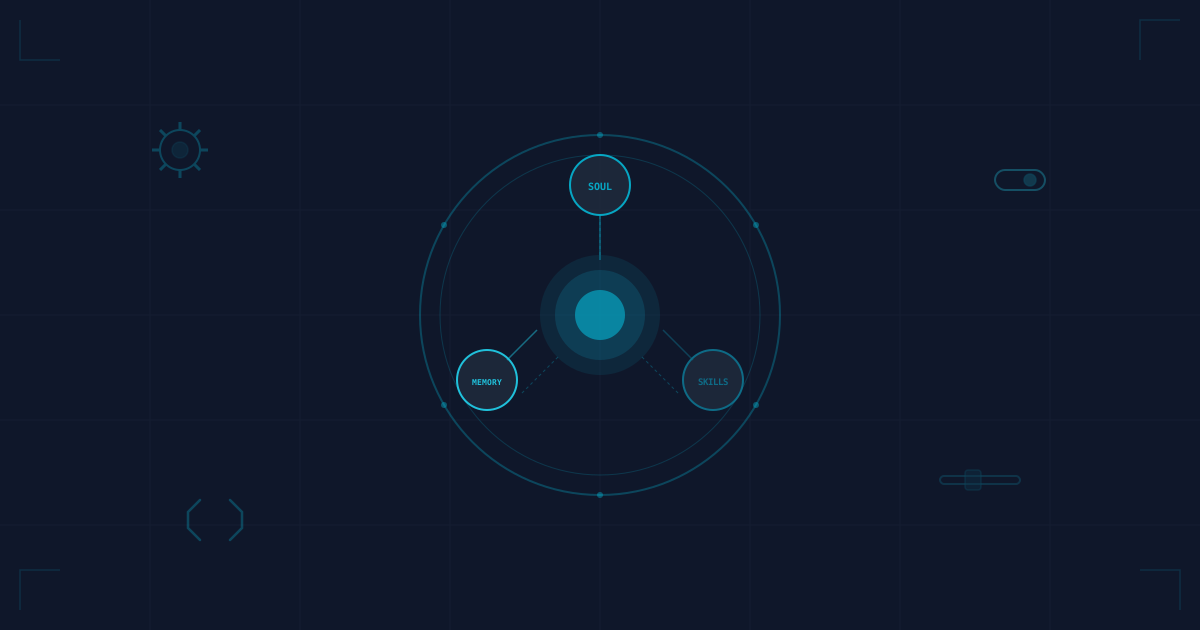
Hermes is an autonomous agent layer from Nous Research — it edits files, runs shell commands, browses the web, and keeps persistent memory across sessions, all through tool calls to whatever model you point it at. It's a heavier lift than a simple chat wrapper, so we'll set it up carefully.
Now let's build one.
The Setup
1. Install Ollama
On a Mac:
brew install ollama
On Linux or Windows, grab the installer from ollama.com. One download, no sign-up, no configuration wizard.
Start the service:
ollama serve
This runs in the foreground. Leave that terminal open and use a second terminal for the commands below. If Ollama is already running as a desktop app or service, do not start a second server on the same port.
2. Download Your First Model
I'm starting you with a small model on purpose. Here's why: I want your first experience to succeed. Once you know everything works, upgrading to a larger model is one command. But let's get a win first.
ollama pull gemma3:4b
This downloads in about two minutes.
3. Verify It Works
ollama run gemma3:4b
You'll drop into an interactive prompt. Type something.
>>> Write a JavaScript function that takes an array and returns the three largest numbers.
If you get a response, you're running a local LLM. No API key. No internet required after the download.
This is the moment where it clicks.
4. Size Up for Agent Work
Chatting and running an agent are different jobs.
The 4B model you just verified is great for chat — fast, lightweight, and it proves Ollama works. But Hermes needs a model that can follow tool-call instructions. Smaller models (3B–7B) often ignore tool instructions and respond in plain text instead of taking action. Larger models are generally more reliable, but tool calling depends on the model's template and Ollama's runtime support, not just parameter count. You will need to test with your specific model and Ollama version.
For agent work, start by stepping up:
ollama pull gemma4
The Ollama Hermes integration guide lists gemma4 as a local option and estimates roughly 16 GB of VRAM. This is a different model family from Gemma 3, not simply a larger version of the chat model above. Long contexts require additional memory. Check the exact model tag, quantization, and tool support on your machine before committing to an agent workflow.
Check the hardware reference below if you're unsure whether your machine can handle it.
5. Install Hermes
Hermes is a separate install from Ollama. Run the official installer:
curl -fsSL https://raw.githubusercontent.com/NousResearch/hermes-agent/main/scripts/install.sh | bash
This drops Hermes into ~/.hermes/ and walks you through a setup wizard on first run.
6. Fix the Context Window Before You Do Anything Else
Agent workflows need room for instructions, tool descriptions, and history. Check your model's effective context length and your installed Hermes version's requirements before a long session. A 64,000-token context is an example configuration, not a universal safe setting: it can require substantial extra memory. Ollama defaults vary with hardware and version, and current Hermes setup can auto-detect context length.
There are several ways to raise the context window; the right one depends on how you run Ollama:
Option A: Modelfile (persistent for a custom model)
cat > Modelfile << 'EOF'
FROM gemma4
PARAMETER num_ctx 64000
EOF

ollama create gemma4-64k -f Modelfile
Option B: Environment variable (for the Ollama server)
OLLAMA_CONTEXT_LENGTH=64000 ollama serve
Option C: API option (per-request, useful for the Node example later)
curl http://localhost:11434/api/generate -d '{
  "model": "gemma4",
  "prompt": "reply with just: OK",
  "stream": false,
  "options": { "num_ctx": 64000 }
}'
Option D: Set it inside ollama run
ollama run gemma4
>>> /set parameter num_ctx 64000
Verify the context is actually in effect by checking the CONTEXT column while the model is loaded:
ollama run gemma4-64k
>>> /show parameters
ollama ps
Different Ollama versions and model templates handle this differently. If one method doesn't stick, try the Modelfile or API option.
7. Connect Hermes to Ollama
When the Hermes setup wizard asks for a provider, choose the custom OpenAI-compatible endpoint option:
- Endpoint:
http://localhost:11434/v1 - API key: leave blank (Ollama doesn't require one)
- Model: the exact name from
ollama list— in our case,gemma4-64k
Hermes writes this to ~/.hermes/config.yaml automatically. That's it — you now have a local, agentic AI assistant.
Switching Models
This is the killer feature. Ollama makes model-switching trivial.
Need something faster for chat?
ollama pull qwen2.5:3b
Need stronger reasoning?
ollama pull gemma4
Need coding assistance?
ollama pull codellama:7b
Same API. Same workflow. Different model. One string in your config flips from gemma4 to codellama:7b and suddenly you have a coding specialist running locally.
Remember: Verify tool-call support, effective context length, and available memory when switching models. Chat quality alone does not prove that the model can run an agent.
When You Outgrow Your Laptop
Local models have limits. If you're running on a machine with 8GB of RAM, you'll hit a ceiling with models larger than about 7B parameters. Your laptop fan will sound like a jet engine. And some models simply won't fit.
When that happens, you can always move to cloud-hosted models while keeping a similar architecture. The patterns you learn here — REST APIs, model switching, prompt engineering — carry over directly. You just swap out the endpoint.
Quick reference for what your hardware can handle:
- A 4B model needs roughly 3GB free RAM
- A 7B model wants 6GB
- A 13B model wants 10GB+
- Apple Silicon handles local inference well; older Intel Macs will struggle
- Local model context windows are usually 2K-8K tokens by default — shorter than cloud models, and something you'll need to raise manually for agentic tools like Hermes
For development, iteration, and experimentation, a 4B model running on your machine is more than enough for chat. Agent work is where you pay the RAM tax.
Wiring It Into Your Own Code
Ollama exposes a REST API at http://localhost:11434. It runs a local server, just like Express. You send it HTTP requests, just like any REST API.
Here is a minimal Express endpoint that calls your local model:
const express = require('express');
const app = express();
app.use(express.json());

app.post('/ask', async (req, res) => {
  const response = await fetch('http://localhost:11434/api/generate', {
    method: 'POST',
    headers: { 'Content-Type': 'application/json' },
    body: JSON.stringify({
      model: 'gemma3:4b',
      prompt: req.body.prompt,
      stream: false,
      options: {
        num_ctx: 8192 // raise this for agent workflows; see the context section above
      }
    })
  });
  const data = await response.json();
  res.json({ reply: data.response });
});

app.listen(3000, () => console.log('Local AI server on :3000'));
Twenty lines. Since Ollama already speaks REST, using it from Express feels just like calling any other local service. No SDK required.
What To Do When It Breaks
It will break. Here is what to check:
- Model won't load? You probably ran out of RAM. Close Chrome. Close VS Code. Try again.
- Slow responses? On a Mac with Apple Silicon, Ollama should use the GPU automatically. Verify with
ollama ps. - Hermes losing track after a few steps? Check effective context length, truncation, tool-call compatibility, and memory pressure. Increasing context will not fix an unsupported tool-call format.
- Weird output? Local models are more sensitive to prompt structure than cloud models. Be more explicit. Give it examples. Tell it exactly what format you want.
This is the trade-off. A little polish for total control. After a week, you stop noticing.
The Real Win
The biggest surprise wasn't how good the model was. It was how easy it was to get running.
Twenty minutes later I had a local AI assistant I could experiment with as much as I wanted. No API key. No usage dashboard. No worrying about how many prompts I'd burned through. Just another service running on my machine, ready whenever I needed it.
If you've been putting off local AI because it looked intimidating, stop waiting. Twenty minutes is all it takes to get your first assistant running.